IG0001 JxServo Studio Installation and Uninstallation Guide
| Item | Information |
|---|---|
| Document No. | IG0001 |
| Revision | Rev. 1.0 |
| Applicable Product | JxServo Studio |
| Language | English |
| Last Updated | 2026-05-12 |
This document explains how to install JxServo Studio on Windows, verify its initial launch, and uninstall the software. It applies to field commissioning, after-sales maintenance, and self-service software installation by users.
Scope
- Applicable Software: JxServo Studio.
- Supported OS: Windows 10 / Windows 11.
- Official Download URL: JxServo Studio Download Page.
- Example Installer Package:
JxServoStudio_Setup_v1.0.0.exe.
Installer version numbers may vary across release batches. During actual installation, refer to the filename of the installer package you obtained and the version displayed inside the software interface.
Prerequisites
Before starting the installation, please confirm the following:
- You have obtained an officially released JxServo Studio installer package.
- The current Windows user account has sufficient permissions to install software.
- If an older version of JxServo Studio is currently running on the PC, close the application window first.
- When performing an upgrade installation, back up important configuration files beforehand or ensure user data is retained if uninstalling first.
Installation Steps
1. Run the Installer
Locate the installer package JxServoStudio_Setup_v1.0.0.exe and double-click it to run.

2. Confirm Installation Options
Once the installer window opens, confirm the following options in order:
- To change the installation directory, click the folder icon to select a custom path; if there are no special requirements, keep the default path.
- Check
"我已经阅读并认可《软件许可及服务协议》" (I have read and agree to the Software License and Service Agreement). - Click
"一键安装" (One-Click Install)to begin installation.
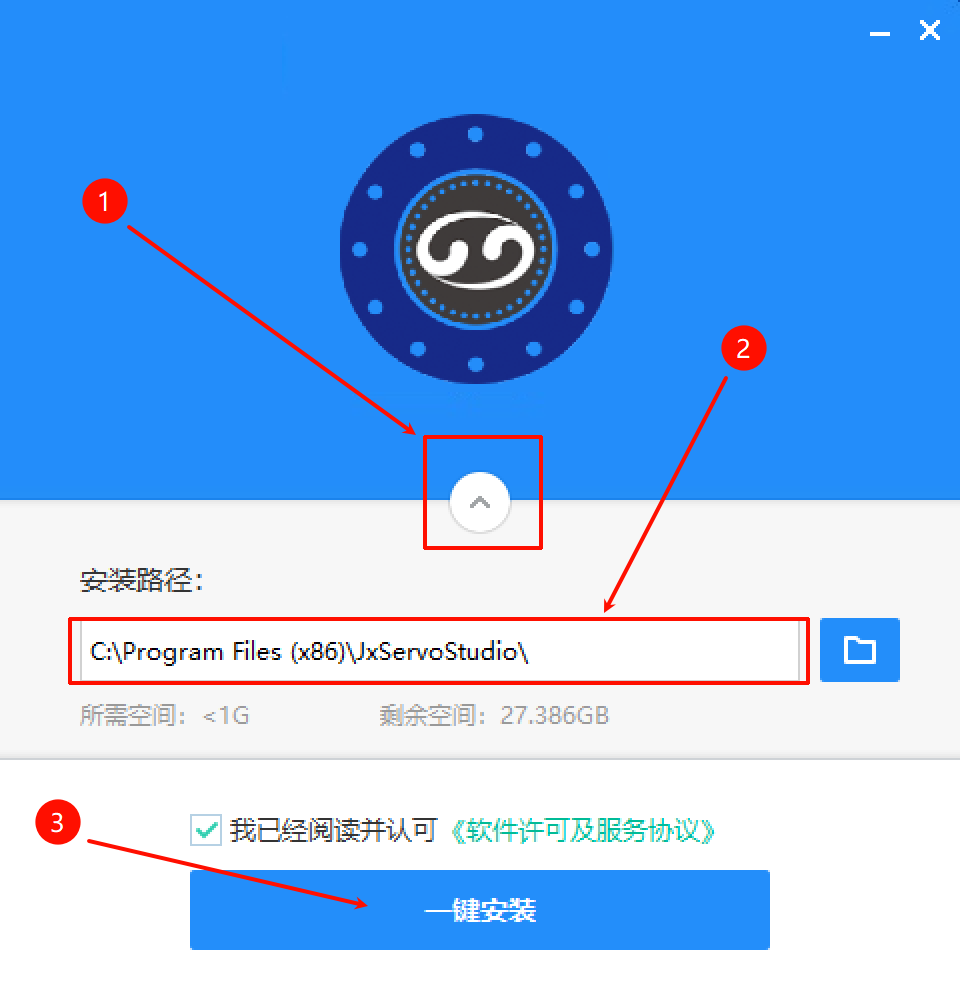
The default installation directory is typically C:\Program Files (x86)\JxServoStudio\. If your organization or project specifies a unified software installation directory, adjust it in this step.
3. Wait for Installation to Complete
Wait for the progress bar to finish during installation. Do not close the installer window or force-terminate the installer process.

4. Launch the Software
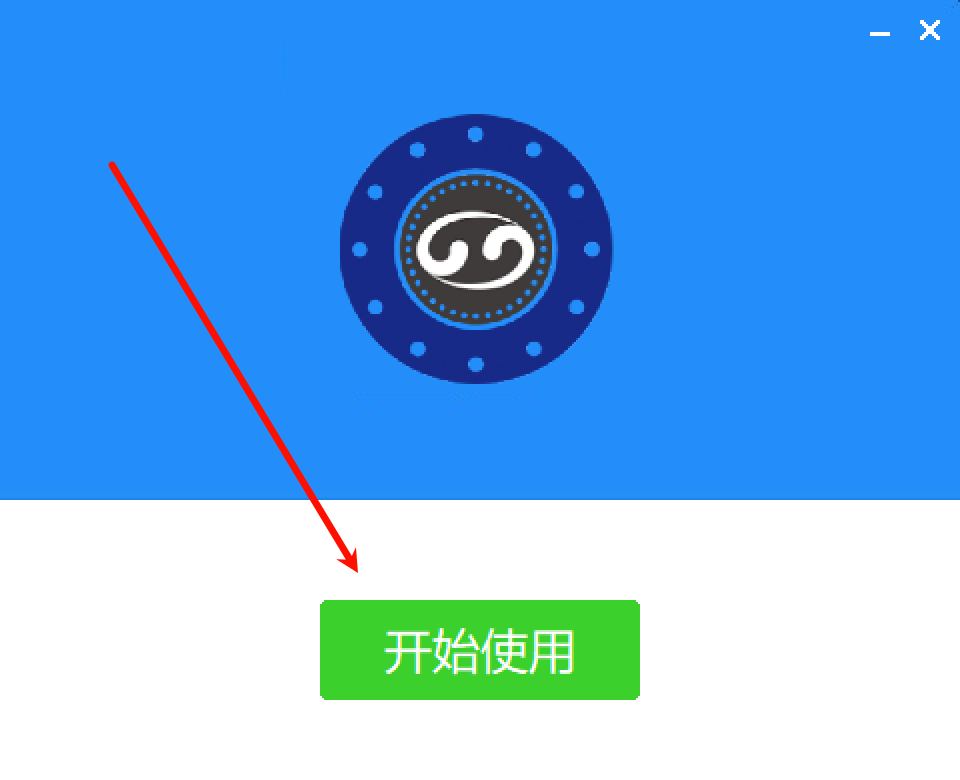
After installation finishes, click "开始使用" (Start Using) to launch JxServo Studio.
5. Verify the Main Interface
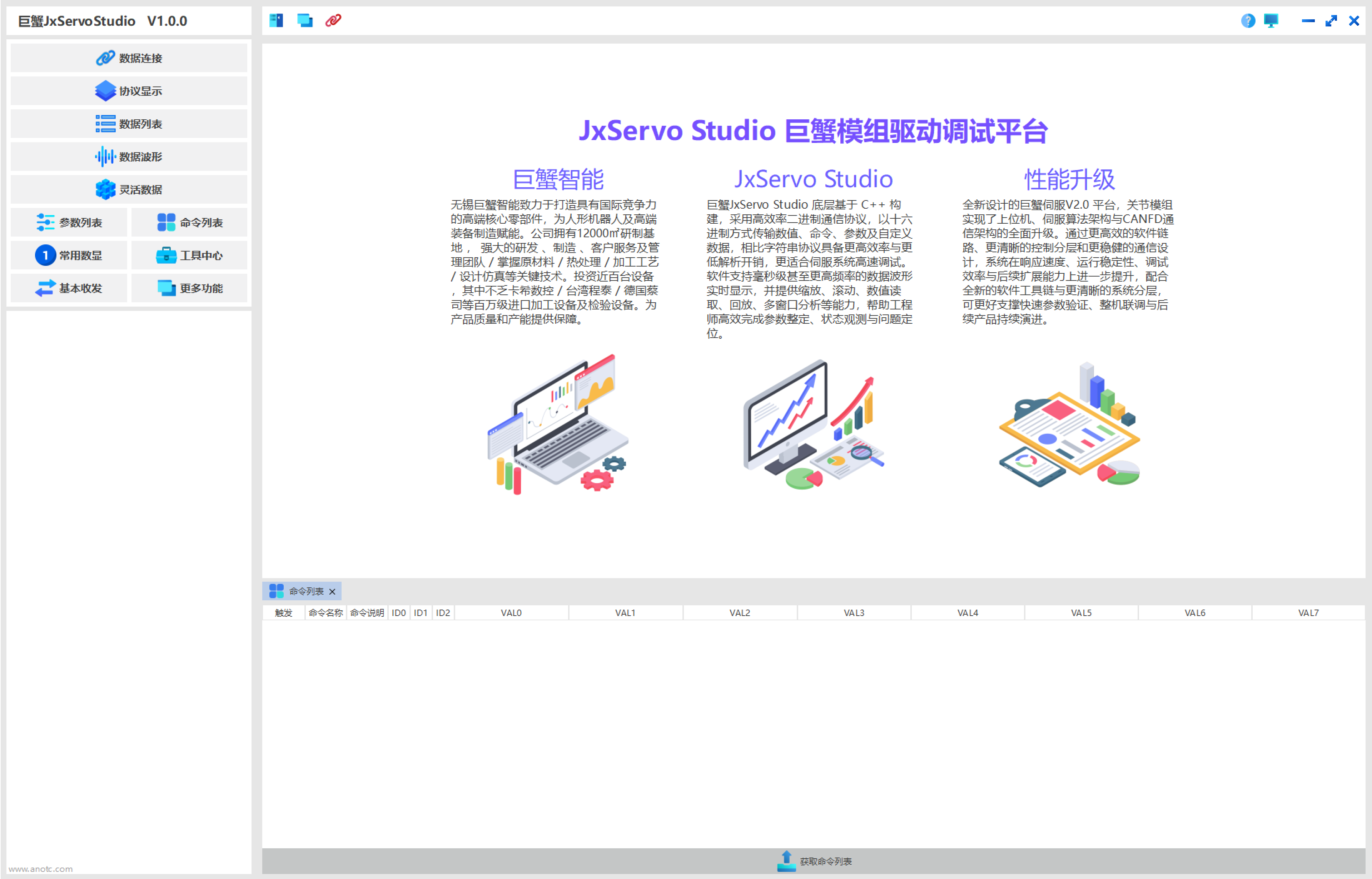
When JxServo Studio launches normally, its main interface opens. Seeing function entries such as "数据连接" (Data Connection), "协议显示" (Protocol View), "数据列表" (Data List), and "数据波形" (Data Waveform) confirms that the software has been installed and started successfully.
Uninstallation Steps
1. Search from the Windows Start Menu
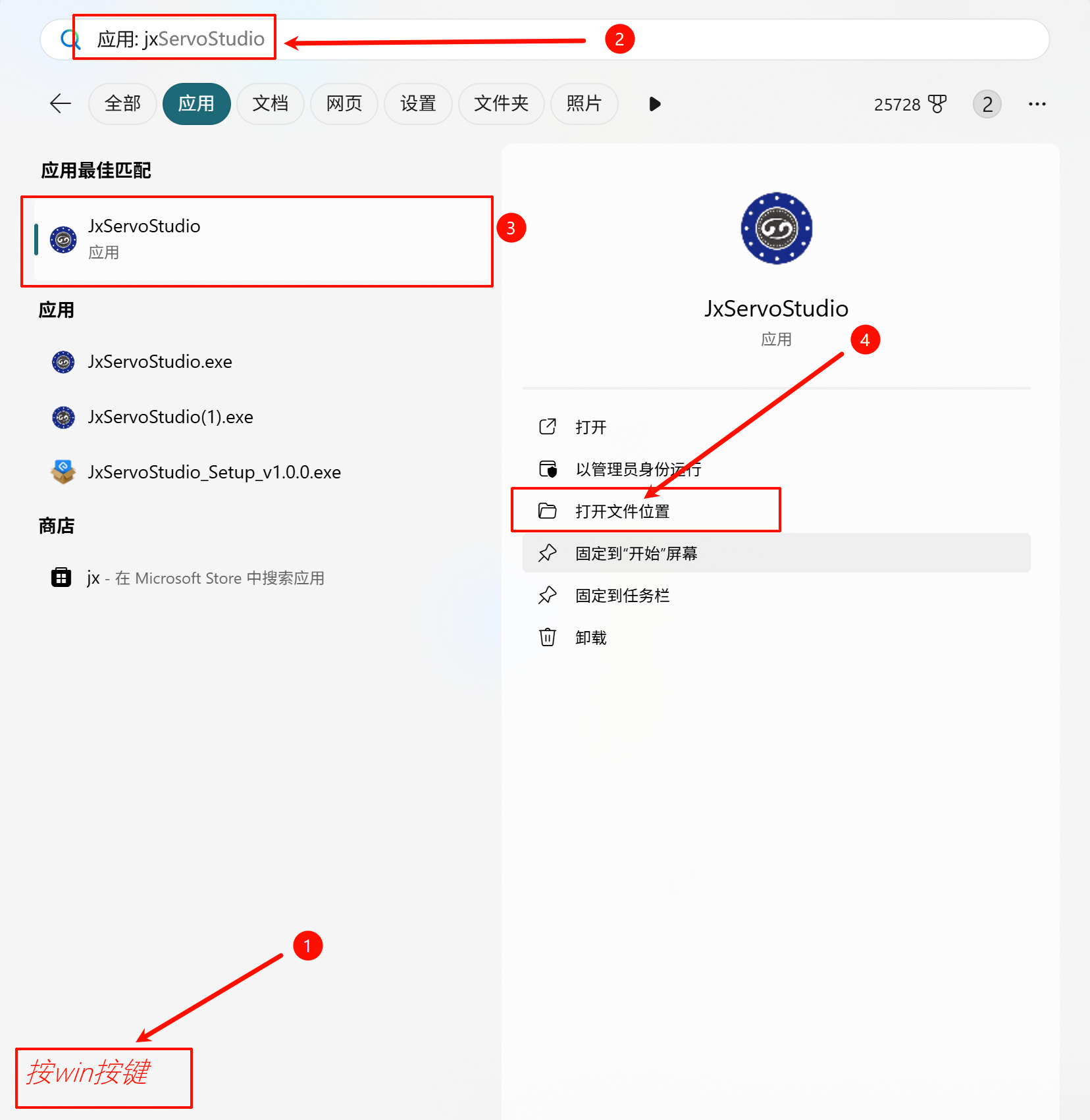
Press the Win key on your keyboard to open the Windows Start Menu and type JxServoStudio into the search box.
Select JxServoStudio in the search results, then click "打开文件位置" (Open file location) on the right panel.
2. Run the Uninstall Shortcut
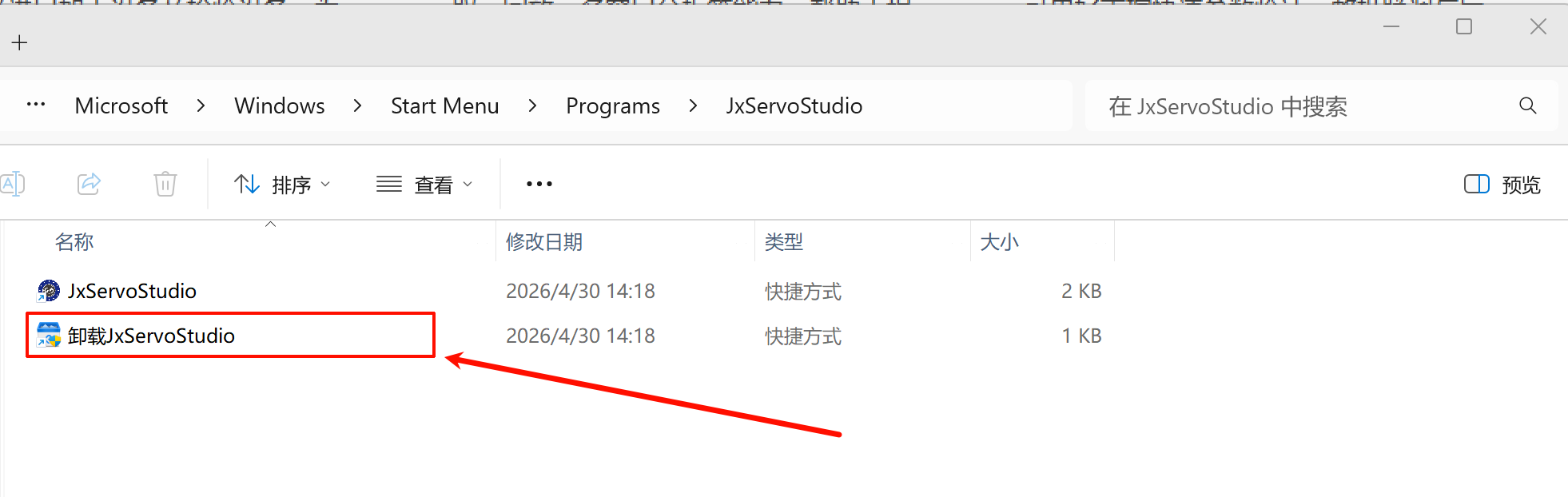
Windows will open the JxServoStudio Start Menu program folder. Double-click "卸载JxServoStudio" (Uninstall JxServoStudio) to launch the uninstaller.
3. Confirm Uninstallation
In the uninstallation confirmation dialog, it is recommended to keep "保留我的数据" (Keep my data) checked by default, and then click "确定" (OK).
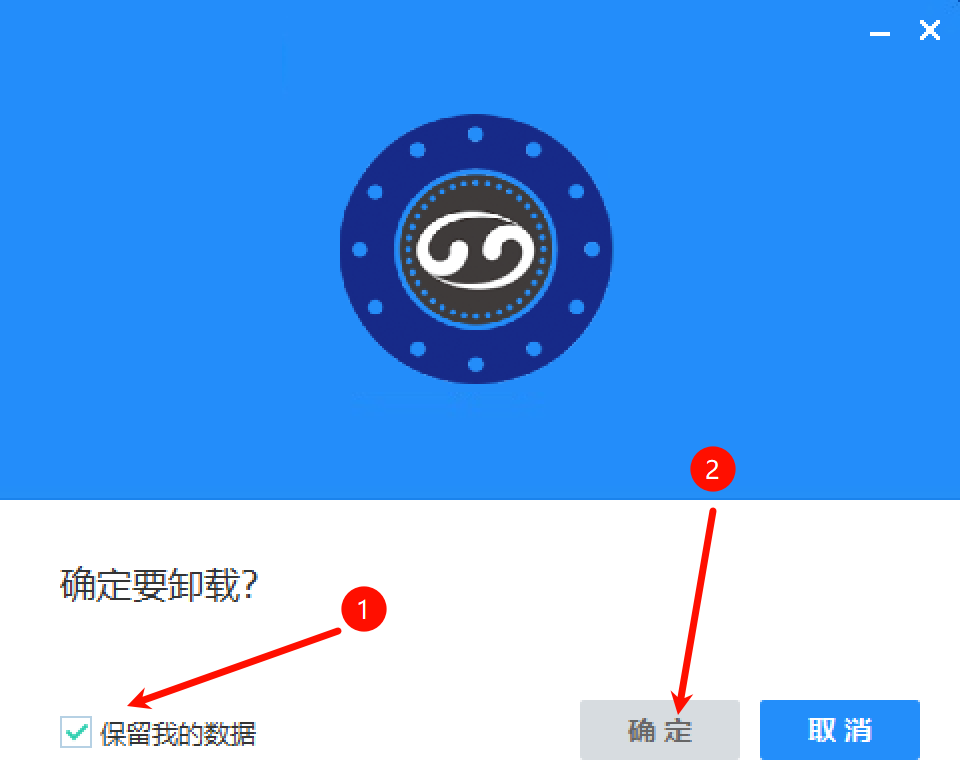
Keeping user data prevents accidental deletion of existing local configurations, logs, or project-related files. Uncheck this option only when you explicitly need to completely wipe all software data, troubleshoot corrupted configurations, or reinitialize a clean environment.
Common Startup Issues
On some computers, launching JxServo Studio for the first time may trigger an error indicating missing Visual C++ runtime DLLs, or cause the application to close unexpectedly on startup. If this occurs, install the Microsoft Visual C++ Redistributable package VC_redist.x64.exe first, and then relaunch JxServo Studio.
Runtime Download Link: VC_redist.x64.exe
Extraction Code: ano6
Notes
- Do not run JxServo Studio while installing or uninstalling the software.
- If Windows Security prompts for confirmation, verify that the installer comes from a trusted official source before proceeding.
- To reinstall after uninstallation, run the official installer package again.
- If the software fails to start immediately after installation, restart your PC first and then launch JxServo Studio again.
- Before wiping user data, confirm that any important configurations, logs, or project files have been backed up.